🔫 Weapon Profiles: Per-Weapon Parameters
Weapon Profiles let you create separate aimbot settings for different weapon classes, such as rifles and snipers. If a class has no custom profile, Cherry continues using the global default values.
🛠️ Where to find it
- Log in and open the main Cherry screen.
- On the first page (Main), find Settings ⚙️ on the right side.
- Open Weapon Config 🎯.
🚀 Steps
1. Choose a weapon class
On the left side, select the category you want to customize, such as Pistols, Rifles, or Snipers.
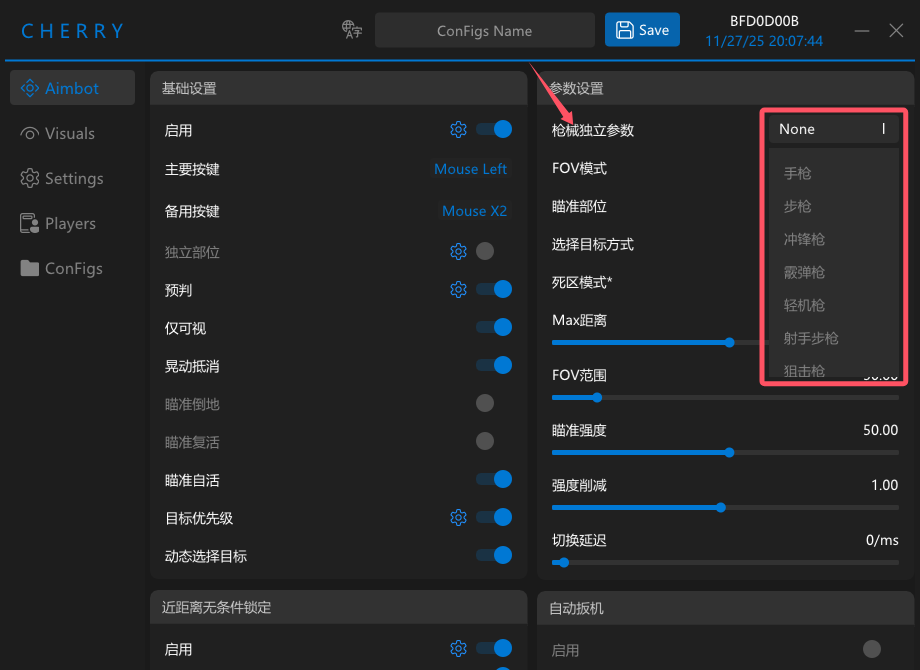
2. Configure the values
After selecting a class, the right side will show the weapon parameter panel ⚙️.
Click Select Weapon ➕ to add a specific weapon model, then adjust FOV, aim distance, smoothing, and other values for that class.
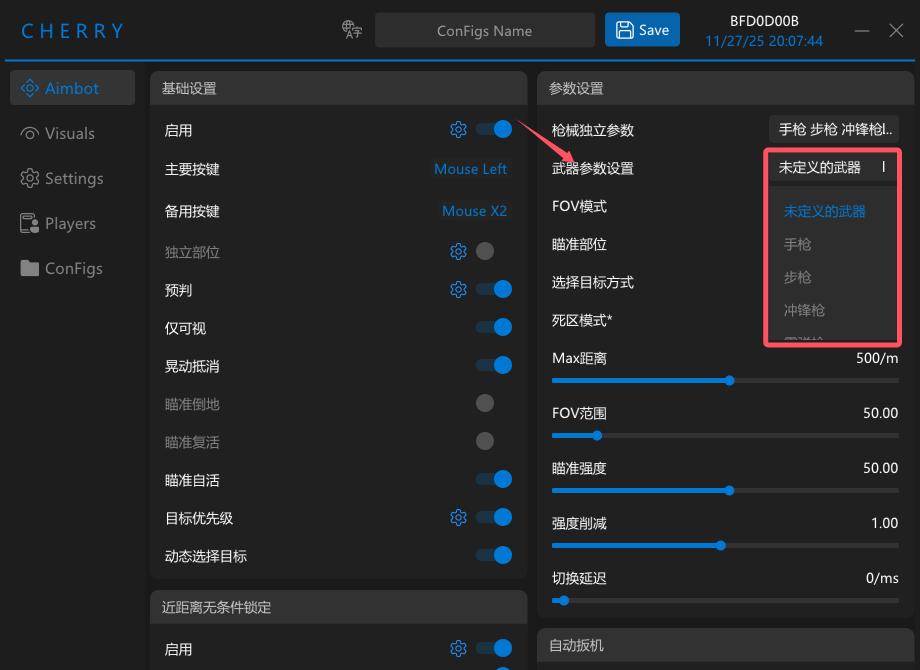
🔧 Core Concept: Default Values
Default weapon parameters = the global fallback values.
If you do not define a separate profile for a class, Cherry uses these global values automatically.
Once you create a custom profile for a class, that class no longer depends on the global fallback.
📝 Example
Goal: You want rifles to aim at the chest, while snipers always lock the head with no smoothing.
- Rifle: In the global settings or the rifle profile, set
Bone = ChestandSmooth = 5. - Sniper: In Weapon Config, select the sniper class and set
Bone = HeadandSmooth = 0.
❓ FAQ
👉 Make sure you clicked the add button or expanded the list inside Weapon Config.
👉 Remove the custom entries for that class or use the reset option. Cherry will automatically fall back to the default values.