🌐 KMBOX Network Edition (Net) Setup
Before using Cherry DMA's aimbot features, you must first connect the KMBOX Net device correctly.
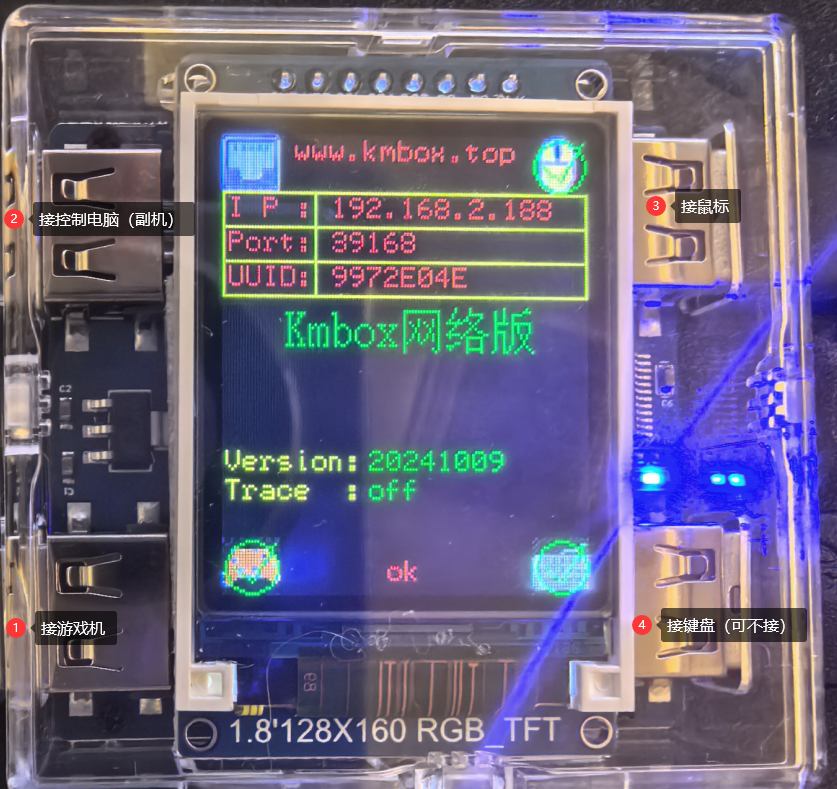
🔌 1. Connect the Hardware
Connect one Ethernet cable from the top-left KMBOX port to the secondary PC, then connect another cable from the bottom-left KMBOX port to the main PC.
⬇️ 2. Install the KMBOX Driver
After the KMBOX Net is connected successfully, download and run the driver installer.
Click the Install button to complete the driver installation.
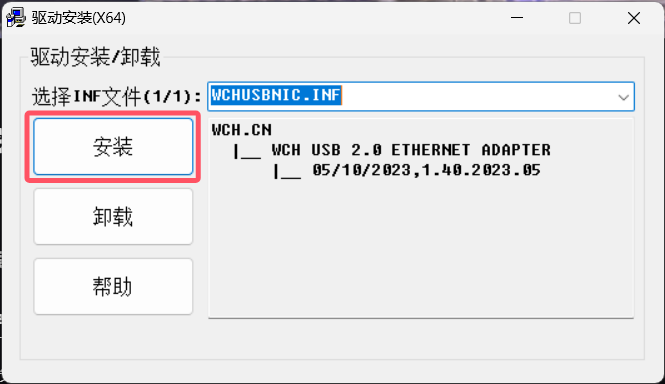
If the driver fails to install, contact us through Discord or QQ.
🧩 3. Configure the Network Adapter
After restarting the secondary PC, go to:
Press the Windows key, open Control Panel → Network and Internet → Network and Sharing Center → Change adapter settings
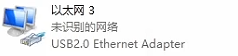
Find the KMBOX Net adapter, then right click it and open Properties.
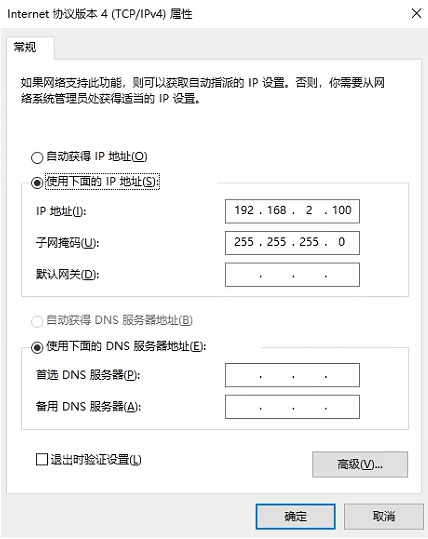
Select Internet Protocol Version 4 (IPv4) and click Properties.
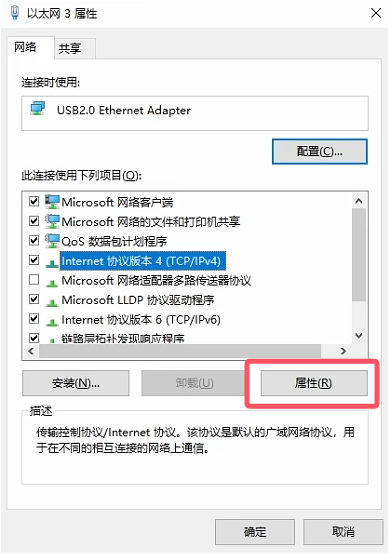
Apply the IPv4 settings shown below:
🧪 4. Test the Software Connection
Click OK, close the windows, launch Cherry, fill in the information shown on the KMBOX Net display, and start the connection.
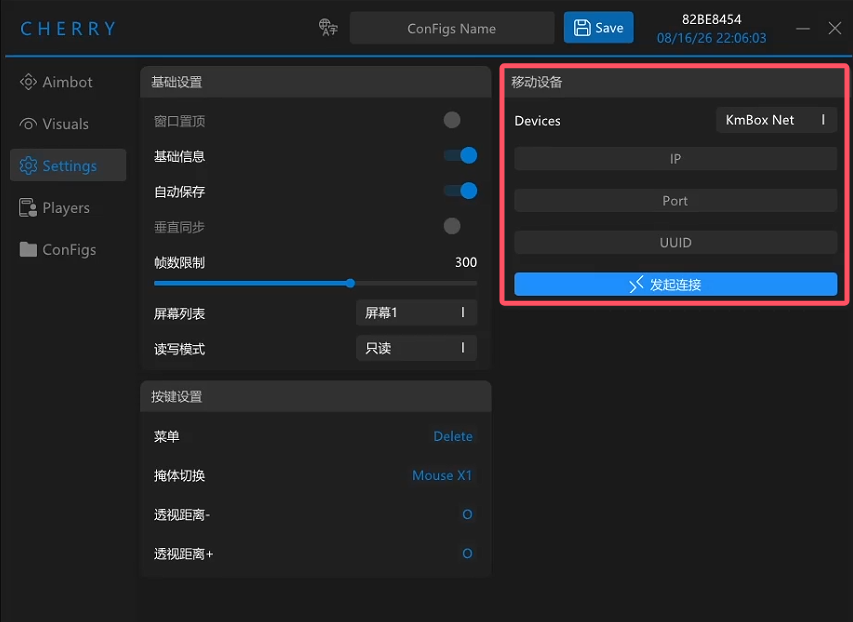
Once connected, use the test movement and test click options at the top.
If the tests do not work, restart both PCs and try again.
If it still fails, open a Discord ticket or contact the QQ group owner.
Your KMBOX Net should now be connected successfully.