KMBOX Bpro / makcu
Before using Cherry DMA's aimbot features, make sure your KMBOX device is connected correctly.
1. Preparation & Connection
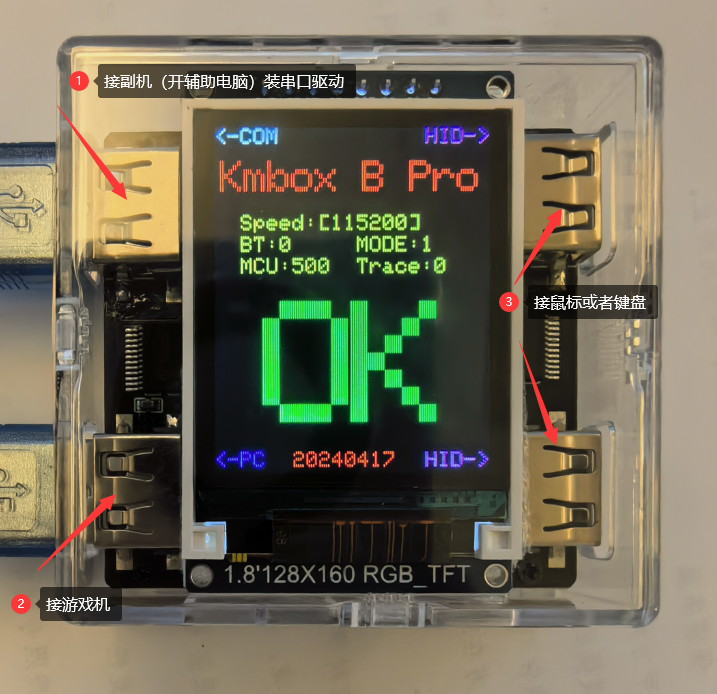
- 🔌 Connect one cable from the top-left KMBOX slot to the secondary PC, then connect another cable from the bottom-left slot to the main PC.
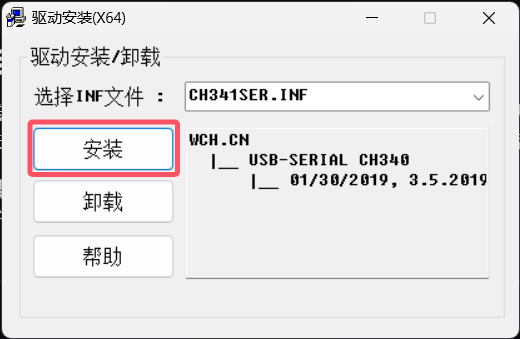
- ⬇️ If the driver is not installed yet, download and install it on the secondary PC first. Restart the secondary PC when the installation is complete.
2. Bpro / MAKCU Serial Setup
- 🪟 Press Win, search for and open Device Manager.

- 📌 Expand Ports (COM & LPT).
- 🔎 Look for CH340 or another USB Serial device and remember the COM port number (for example COM3).
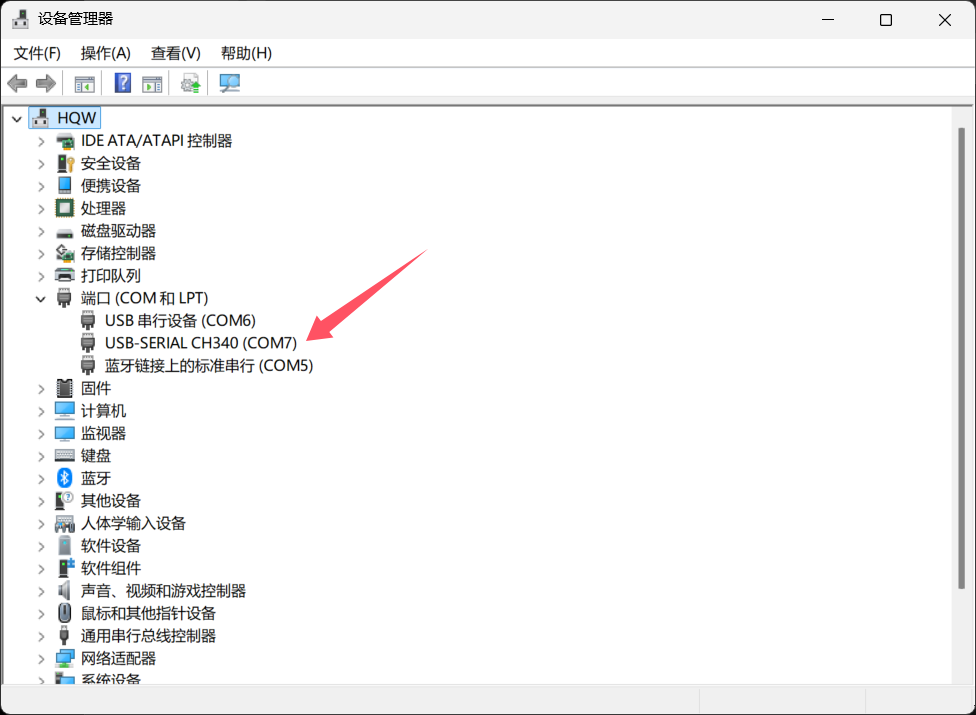
Figure 3 - Confirm the correct COM port number
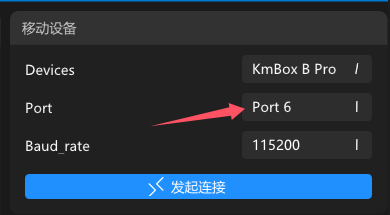
- ✅ Return to Cherry and select the matching COM port in the Port setting.
⚠️ Troubleshooting
If nothing happens after you click connect, or you see an error message, the issue is usually with the KMBOX hardware or its driver rather than with Cherry itself.
Please contact your device seller or hardware support directly.
🎉 Done!
Your KMBOX device should now be connected successfully.
Your KMBOX device should now be connected successfully.