Common Errors & Solutions (FAQ)
This page summarizes the most common Cherry DMA errors and how to fix them. Match the issue with your screenshot or console output.
🌐 Error: Network / Server Connection Problem
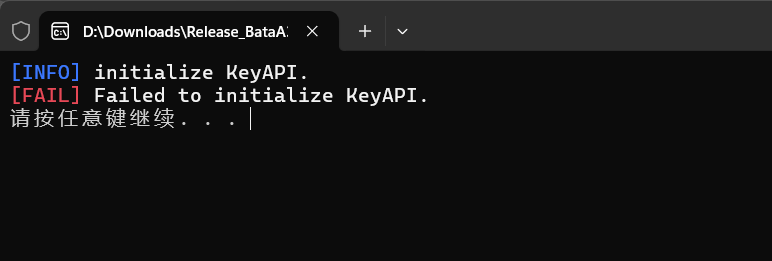
Cause: This is a general network error, which means the client could not reach the verification server.
1. Check your own network: Open a few websites and confirm that your connection is working.
2. Check server status: Visit the server status page to quickly tell whether this is a local network issue or a server-side outage / maintenance window.
3. Server maintenance: If the status page shows maintenance or an outage, no local action is needed. Please wait for service to recover.
🎯 Error: Hotkey Listening Failed (Aimbot Not Working)
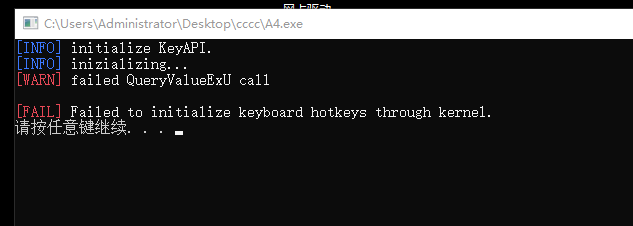
Symptom: Aimbot does not work in-game and the console shows a keyboard / hotkey initialization failure.
📌 Fix
This is usually caused by recent security updates and their driver restrictions.
- Option A: Open Settings > Windows Update and remove the latest two security patches.
- Option B: Roll the system back from 24H2 to the more stable 23H2 release.
- Try restarting the PC. In some cases it may take several restarts.
- If it still does not work, contact support and prepare for a system reinstall.
🛠 Error: DMA Connection Failed
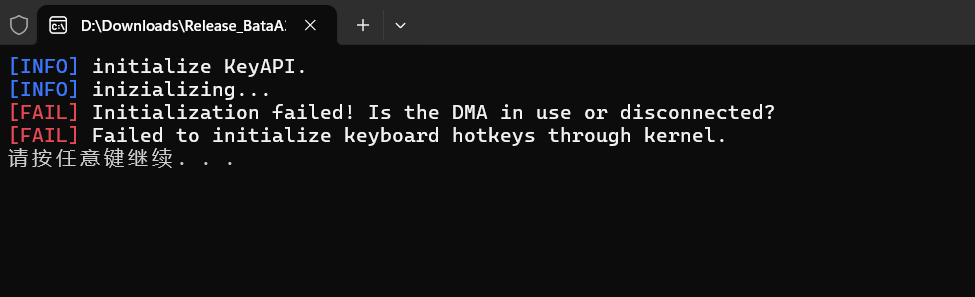
Cause: The client could not detect or communicate with your DMA card.
📌 Checklist
- The device is loose or not fully connected.
- The USB port is not supplying enough power. Do not use front-panel ports or weak hubs.
- The required driver is not installed.
1. Restart everything: Reboot the PC and try a rear USB port if possible.
2. Contact the seller: If it still fails repeatedly, the DMA hardware or firmware may need service.
🧩 Error: DX11 Component Problem
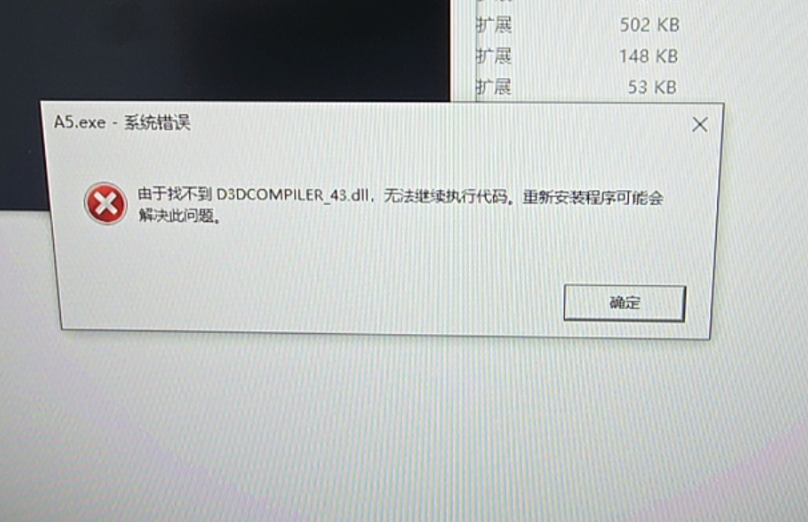
This usually means the system is missing required DirectX graphics components.
📌 Repair Method
Go to the Cherry official group (529971429) and download the tool named DirectX_Repair from the shared files section.
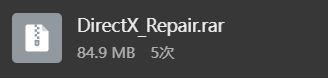
Extract it, run the tool, click “Detect and Repair”, and restart the Cherry client when it finishes.